



Car buyers once focused solely on gas mileage, power, and performance. Today, at Meadowland GMC of Carmel, New York, our sales team probably spends just as much time highlighting advanced onboard connectivity features. One of the items we get asked about most on the GMC Sierra Denali is the Bluetooth system. This wireless technology enables devices to communicate with each other over short distances, providing drivers with easy access to hands-free calling and easy streaming of audio from podcasts, playlists, and the radio.
From time to time, the Bluetooth system will go offline, so we’ve put together this guide explaining how to reset system Bluetooth on the GMC Sierra Denali.
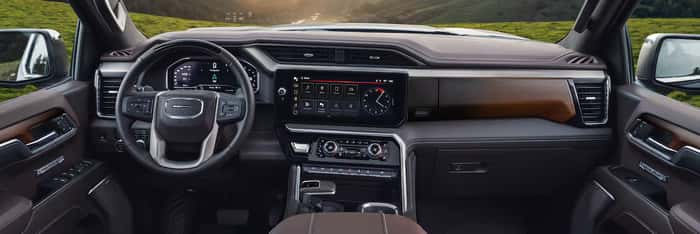
Why You May Need To Reset Bluetooth on Your GMC Sierra Denali
Software technology sometimes seems like it has a mind of its own, so it’s not always apparent exactly what knocks the Bluetooth system offline in your GMC Sierra Denali.
Common reasons for your GMC’s Bluetooth not working include outdated software, interrupted connections, or interference from other electronic devices. These problems may result in unresponsive touch screens, frequent disconnects, crackling during calls, or having no audio at all.
Problems Specific to Paired Devices
Sometimes, you may have a problem with your GMC’s Bluetooth not pairing. This might result from device incompatibility, interference with other wireless signals, errors in the data exchange, low battery levels, software bugs, or other items.
Pairing is a process that’s a little like exchanging contact information with someone you know. Your phone and the infotainment system trade secure codes, including a security key. Those codes are saved on both sides to allow for automatic reconnections without having to go through the re-pairing process again.
Other common issues include having too many paired devices, devices being out of range, mismatched Bluetooth profiles, system overloads, or security restrictions. Performing a reset can give you a fresh start by clearing any bugs and giving the system the opportunity to restart.
Step-By-Step Guide to Resetting Bluetooth
A manual reset might be all you need to fix the issue — no dealership visit required. Follow these steps in our guide on how to reset the system Bluetooth on your GMC Sierra Denali and it’ll be back online again in no time.
Preparing To Reset: Preliminary Steps
Start by checking for software updates — new versions can sometimes cause pairing issues. Downloading the latest update on your phone ensures Bluetooth is fully enabled and helps rule out interference from other devices.
Next, tackle the easy fixes first. Make sure you turn Bluetooth on for both your vehicle and smartphone, and turn off other nearby Bluetooth devices that could be causing conflicts.
Deleting Paired Devices From Your GMC Sierra Denali
Clearing out old connections is a critical step in our guide on how to reset system Bluetooth on the GMC Sierra Denali. This involves navigating menus on both the GMC Sierra’s infotainment system and your phone.
On your infotainment system, navigate to the home screen and select settings. Then go to Bluetooth or phone settings, where you can view and delete previously paired devices individually.
On your phone, open the Bluetooth settings and locate your vehicle’s name in the list of paired devices. Select “Delete” or “Forget This Connection” to clear the existing pairing.
Before reconnecting, GMC recommends restarting the infotainment system. Turn off the vehicle, open and close the driver’s door to fully power it down, and wait two minutes before restarting.
Reconnecting Your Smartphone
Now, it’s time to repair your phone with the vehicle. Follow these crucial steps to finalize the update:
- Turn on the ignition with the vehicle in Park.
- Tap the phone icon on the infotainment touch screen.
- Select “Add Phone” or “Connect Phone.”
- Go to Bluetooth settings on your phone and select your vehicle.
- Confirm that the code displayed on your phone matches the one on the infotainment screen, then complete the pairing.
That’s all there is to it. The Bluetooth connection in your GMC Sierra Denali should now be reset and working properly. Test the connection by accessing one of your playlists or opening one of your apps. If you’re unsuccessful, follow the steps to reconnect once more.
Keeping your GMC Sierra Denali’s Bluetooth system running smoothly requires occasional maintenance. Regular checks can help prevent connection issues before they arise, ensuring seamless integration between your vehicle and your devices.
Regular Maintenance and Checks for Optimal Functioning
As with every aspect of your car, regular maintenance can help you avoid problems when you can least afford them. For instance, it’s a smart idea to check regularly for software updates on both the Sierra Denali’s infotainment system and your smartphone.
These are often released without fanfare with the goal of improving compatibility, fixing bugs, and triggering enhanced performance. It’s also a good idea to clear unused Bluetooth pairs from both the infotainment system and smartphone and to restart both the infotainment system and your mobile phone on occasion. This can help reduce the risk of minor problems turning into major ones.
Also, be aware of nearby common sources of interference that may get in the way of Bluetooth signals. If these are something you can control, you may want to relocate the sources of interference.
Following these procedures will help you minimize disruptions and maximize the utility of the Bluetooth connections in your vehicle, keeping your mobile phone and its many apps properly synchronized when you need them.
Visit Our Service Center at Meadowland GMC Today
Purchasing a vehicle is a major investment. The certified technicians at Meadowland GMC of Carmel, New York, want to help you keep it on the road for as long as possible. With extensive experience in all GMC models, our team handles everything from oil changes and brake checks to powertrain and drivetrain repairs. We can help remind you when it’s time for regular maintenance intervals, especially for oil changes.
We welcome you into the Meadowland GMC family and look forward to providing you with the utmost in customer services. Call us or contact our staff online to make an appointment.
Image from gmc.com
Connect with us

- July 2026
- June 2026
- May 2026
- April 2026
- March 2026
- February 2026
- January 2026
- December 2025
- November 2025
- October 2025
- September 2025
- August 2025
- July 2025
- June 2025
- May 2025
- April 2025
- March 2025
- February 2025
- January 2025
- December 2024
- November 2024
- October 2024
- September 2024
- August 2024
- July 2024
- June 2024
- May 2024
- April 2024
- March 2024
- February 2024
- January 2024
- December 2023
- November 2023
- October 2023
- September 2023
- August 2023
- July 2023
- June 2023
- May 2023
- April 2023
- March 2023
- February 2023
- January 2023
- December 2022
- November 2022
- October 2022
- September 2022
- August 2022
- July 2022
- June 2022
- May 2022
- April 2022
- March 2022
- February 2022